Every control in the correction editor
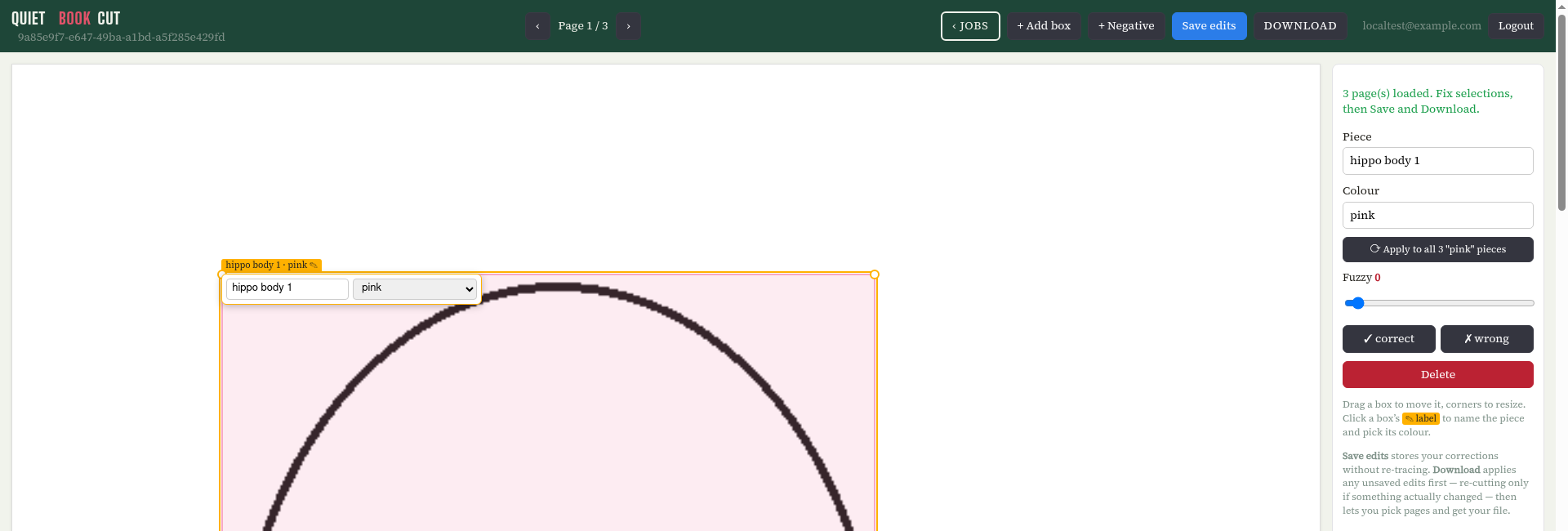
Most patterns need none of this. These are the tools for the occasional page that needs a nudge — what each button does and when to reach for it.
 1
2
3
4
5
6
7
8
9
10
1
2
3
4
5
6
7
8
9
10
- 1+ Add box — draw a new piece selection the auto-trace missed entirely.
- 2+ Negative — mask a stray mark (arrow, handwriting, smudge) so it's never traced. See below.
- 3Save edits — stores your corrections without re-tracing. Fast; use it while you work through a page.
- 4Download — applies any unsaved edits first (re-cutting only if something actually changed), then opens the download dialog.
- 5Piece — the name for this piece. Click a box's ✎ label on the canvas for a quick inline version of the same field.
- 6Color — type to match an existing color in this job, or add a new one. Driven by what the handwriting note said originally.
- 7Apply to all … pieces — recolor every piece currently sharing this color, across every page, in one click. See below.
- 8Fuzzy — bridges small gaps in a hand-drawn outline. See below.
- 9✓ correct / ✗ wrong — tags a piece the validator flagged as uncertain. Marking it "wrong" excludes it from downloads; "correct" confirms it's fine as-is.
- 10Delete — removes this box entirely. Doesn't touch the fabric estimate or billing — a deleted piece was never unlocked.
🧵 Negative boxes
Draw a box over ink that shouldn't be part of any piece — a stray arrow, a handwritten note sitting too close to an outline, a smudge. Click + Negative, then drag a box over the mark.
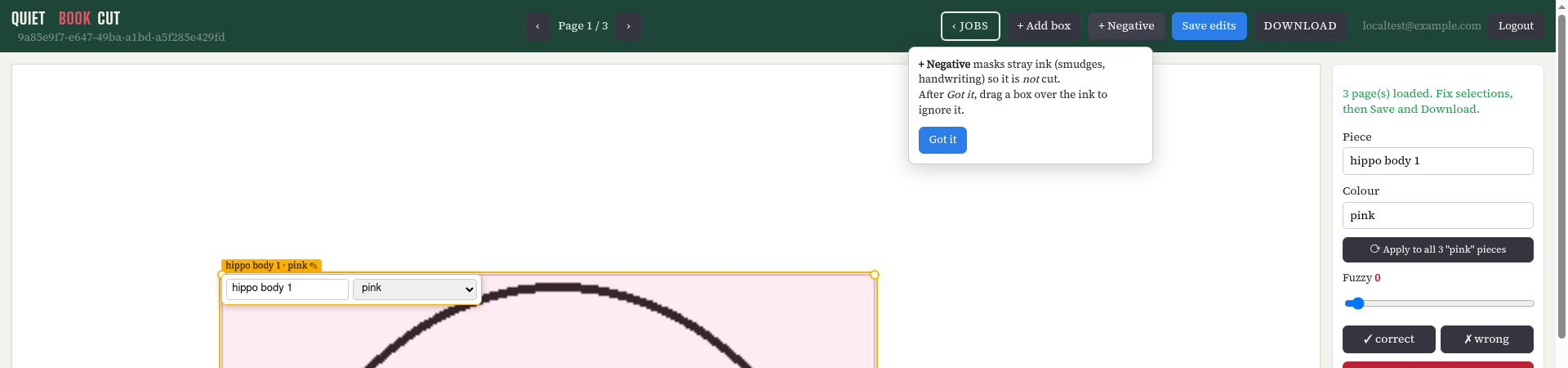
A negative box masks the ink before re-tracing — it doesn't just cut a box-shaped chunk out of the finished piece. That matters: drawing a negative box over, say, a letter's closed loop that got mistaken for a cut-out hole genuinely removes the hole, rather than leaving a box-shaped notch behind. Affects every piece the box overlaps, not just the one you were looking at when you drew it.
Worked example. Both pieces below had stray ink traced right into them — a loop baked into what should be a plain rectangle, and a hand-drawn arrow baked into an orange piece.
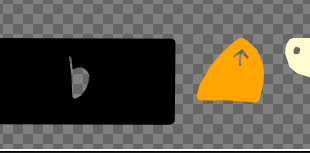
Before — stray ink traced right into the piece
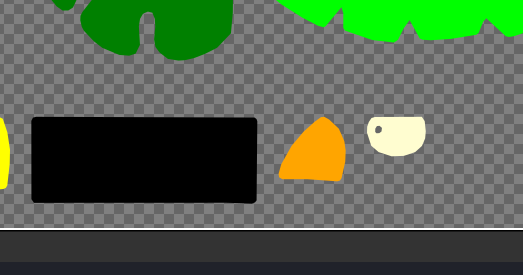
After — negative boxes masked both marks before re-tracing
How to draw the box: start the drag on a blank part of the page — empty background, not on top of an existing piece's box. Starting on top of an existing box just moves that box around instead of creating a new negative region. A reliable order: click + Negative, start your drag somewhere clearly empty (the right-hand margin works well), then drag the box over onto the stray mark and resize it from there until it fully covers the ink you want gone.
Fuzzy slider
For a hand-drawn outline with a real gap in it — the pen lifted, a line trails off instead of closing. 0 is off; 10 bridges gaps up to roughly 3mm. Start low and nudge it up only as far as you need — too high can bridge gaps that were never meant to close, merging a piece with its neighbour.
↻ Apply to all … pieces
Fixing one piece's color (a misread "light blue" that should've been "medium blue", say) often means the same mistake repeats across the whole pattern. This button finds every piece currently sharing the original color you selected and recolors all of them to the new one, across every page — one click instead of hunting down each one by hand.
- Edits are per-job. Nothing here touches other jobs, even ones with identical pieces.
- Save edits often. It's instant (no re-trace) — there's no reason to wait until a whole page is perfect before saving.
- Download re-traces only if needed. If nothing changed since your last download, it skips straight to the file.