From a scribbled-on pattern to a cut-ready file
Everything below is a real pattern going through the real app — this is exactly what you'll see, start to finish.
Tip — an SVG importing at the wrong size in Cricut Design Space? Fix it free, no account needed →
Have black line art (a drawing, tattoo flash or colouring page) to cut from vinyl? Turn it into one vinyl decal →
Upload your PDF
A scan or photo of your pattern — hand-drawn lines, handwritten color notes, coffee rings and all. No cleaning it up first.
PDF only, for now — it's the one format that keeps your pattern's real physical size intact. Your scanner will likely scan to PDF.
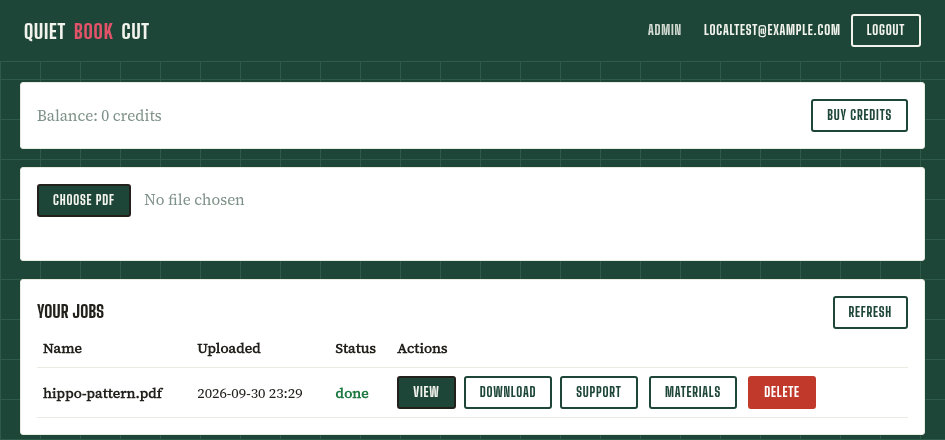
Watch it find every piece, live
No spinner, no guessing — a running feed shows each piece as it's identified, straight off the page: "parrot wing · purple or fuchsia", "lion tail · yellow orange"…
Most patterns finish in a few minutes. Close the tab if you like — we'll email you when it's ready.
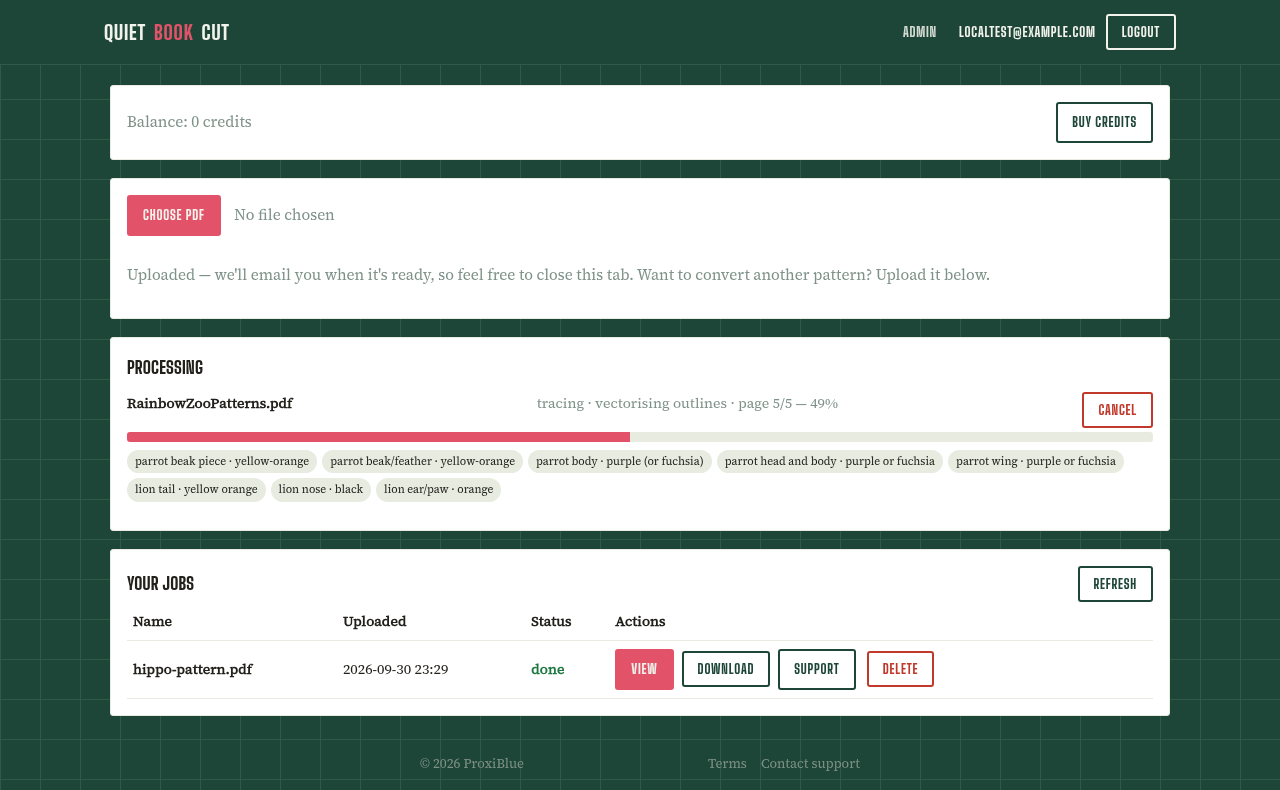
Fix anything that needs it
Drag a box to move or resize it, relabel a piece, or draw a negative box to mask out a stray mark. Most patterns need no changes at all — this is just there for the occasional stubborn page. Full editor reference →
Converting is always free. If a whole page comes out badly wrong, or has more defects than a quick fix can reasonably cover, open a support ticket with a screenshot — you'll get a download credit refund for any credits spent on that download.
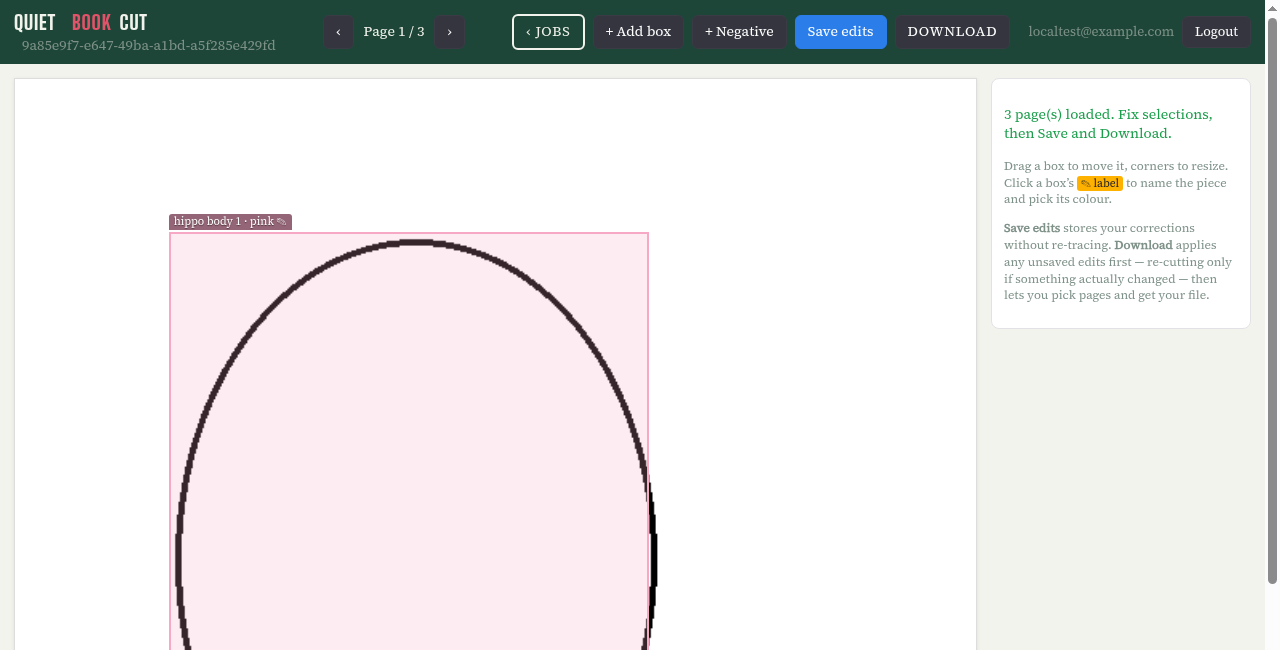
Download, grouped your way
By color (the default — everything you'll cut from one sheet, together), by page, or by pattern. Pick exactly which groups you want, hit download, and watch real progress while it re-traces — no guessing whether it's stuck.
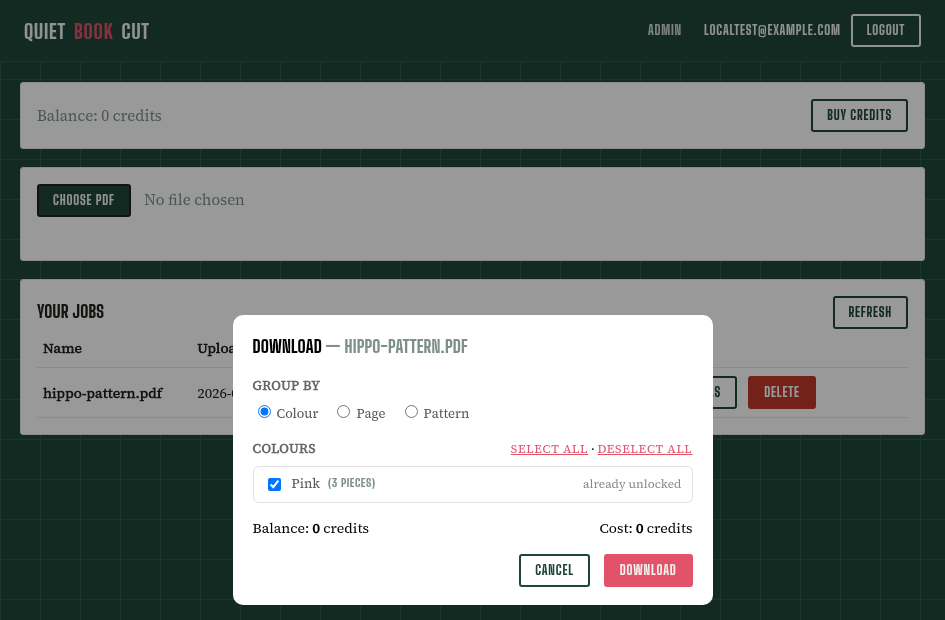
Preview your pattern
Not sure what you're about to cut? On the jobs page, every finished job has a Preview pattern button. It opens your pattern as a little flip-book: one page at a time, every piece drawn as felt in its own color, at its real size and place on the page. Flip pages with the arrow buttons, the left and right arrow keys, or a swipe on a phone or tablet. Press Esc to close.
Under each page you'll see its pieces, each with its color and material. A piece with an AI note gets a number on the page and its note in a list below it; the note itself is only drawn in the photo. To show a detail such as a zipper mouth or a bell nose, draw a box around it in the correction editor and tick Preview only: it shows on the preview and in the photo of the piece under it, but is never cut or charged (more). Pick a piece and choose Photo-realistic view to get an AI photo of that piece as real stitched felt, which you can download.
Previewing is free and doesn't use credits. A photo counts toward your daily limit of AI actions.
- Import anywhere. Download as SVG (Sure Cuts A Lot, Cricut Design Space, Silhouette Studio Designer Edition and up) or DXF (Silhouette Studio Basic, Brother CanvasWorkspace for ScanNCut, and most other cutters), or as printable paper templates to cut by hand.
- Not only felt. The converter doesn't care what you cut: heat-transfer vinyl for shirts, card and papercraft, stickers, stencils, appliqué, leather — any pattern drawn as line art comes out as clean cut files.
- Pay once, keep it. Every piece you unlock is yours to re-download any time — next month, next year, no re-buying.
- Recolor without re-cutting. Changed your mind on a color? Fix one piece in the correction editor and apply it to every matching piece at once.
- 🧵 Check your fabric needs anytime. Every finished job has its own Materials button on the jobs page — a rough shopping-list estimate per color, independent of what you've downloaded so far.
Got a pattern sitting in a drawer?
Converting is always free, and you get 25 free piece downloads every month — no card required to try it.
Get started free