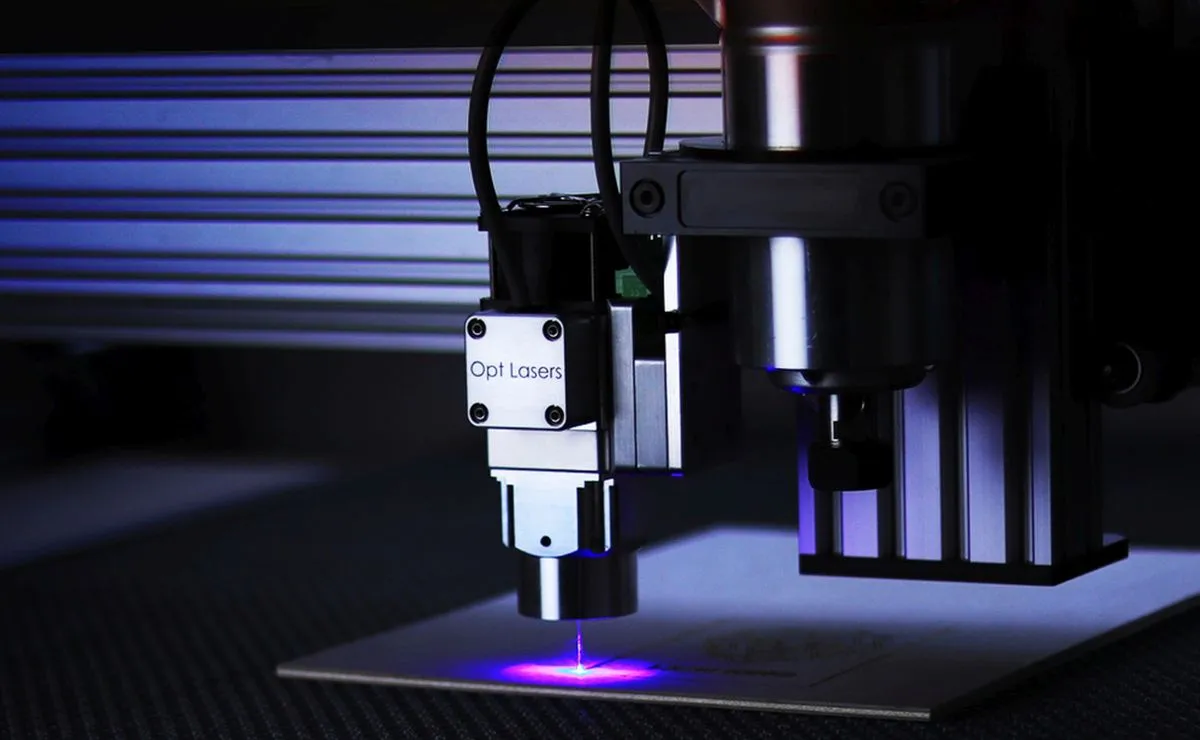
Two vector formats come up in almost every cut file conversation, and they are rarely interchangeable in practice. SVG is the standard format for web design, Cricut and desktop cutting tools. DXF is what industrial CNC machines, AutoCAD and professional laser cutting setups typically expect. That single split explains most of the confusion crafters hit when a design opens perfectly on one machine and refuses to load on another.
Below is what each format does well, where conversions fall apart, and how to decide which one to export before a pattern goes anywhere near a cutter.
What SVG and DXF Actually Are
Both files describe shapes with maths rather than pixels, so both scale up and down without turning blurry. The difference is who they were built for and what information they carry alongside the outline.
SVG in plain terms
SVG stands for Scalable Vector Graphics, and it grew up on the web. It carries paths, fills, stroke colours, groups and layers in a structure that browsers and design apps read happily. It is the standard format for Cricut and desktop cutting tools, which is why the vast majority of cut files you buy or download arrive that way. Colours and grouping survive the trip, so one file can hold multiple pieces without needing a separate explanation for each one.
DXF in plain terms
DXF is a drawing exchange format with roots in CAD software. DXF files are specifically designed for cutting machines that need detailed line work, and they are a strong fit for intricate laser-cut designs. Where SVG leans toward presentation, DXF leans toward geometry: lines, arcs and polylines with the coordinates that define them. CAM software and laser control programs read that geometry directly and turn it into tool paths.
DXF vs SVG at a Glance
| Consideration | SVG | DXF |
|---|---|---|
| Where it is the default | Web design, Cricut, desktop cutting tools | Industrial CNC machines, AutoCAD, professional laser cutters |
| Strongest use case | Everyday home cutting workflows | Detailed line work and intricate laser-cut designs |
| What it carries | Paths plus fills, strokes, groups and layers | Geometry such as lines, arcs and polylines |
| Text handling | Font text is common and readable by most design apps | Text set in a font should be converted to outlines before export |
| Common conversion route | DXF to SVG through an online converter | SVG to DXF through Inkscape or similar |
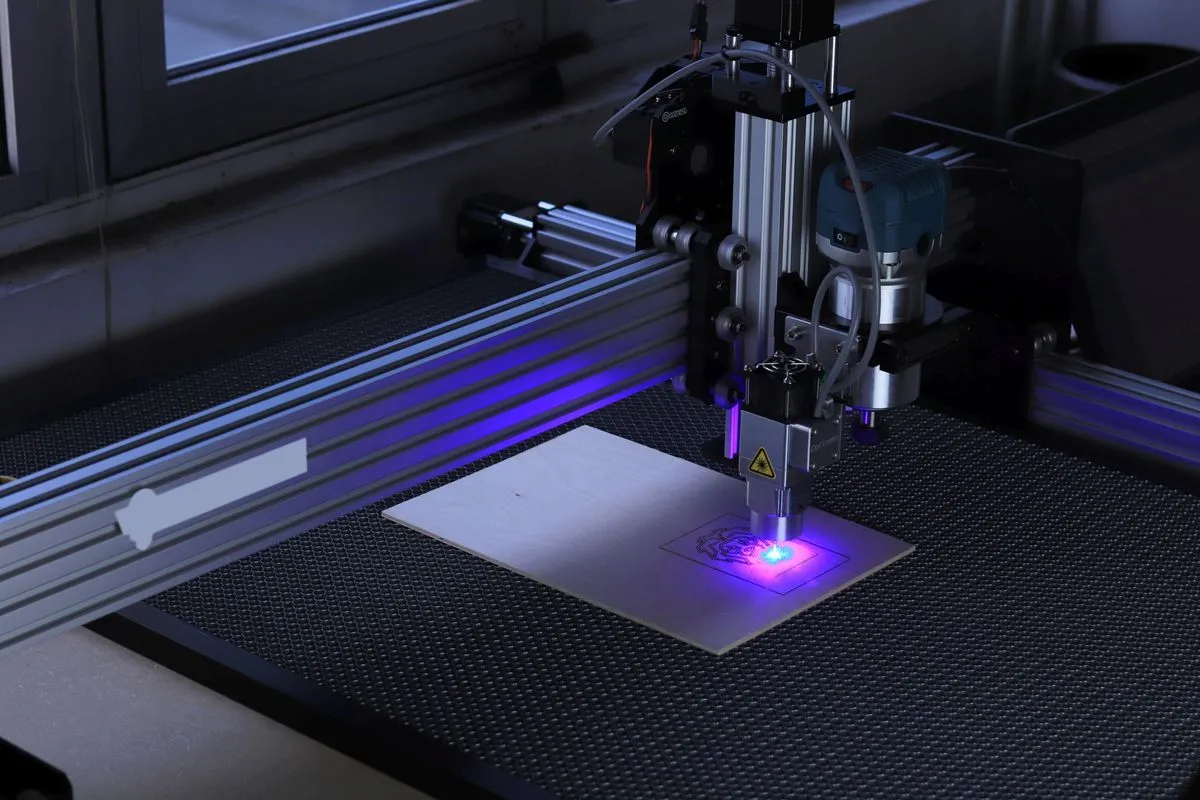
Why SVG Suits Vinyl Cutters
Vinyl and heat transfer vinyl work is layer-heavy. Each colour in a design usually becomes its own cut, and each of those cuts needs to stay grouped so pieces do not get separated or resized by accident. SVG keeps colours and groups intact, which is exactly what a desktop cutting tool wants to see when a file is imported.
For Cricut and similar machines, SVG is the safe default. Options like Silhouette, ScanNCut and Sure Cuts A Lot also sit in the desktop cutting camp, so SVG tends to be the format that loads without a fight. If a pattern arrives as a PDF or a scan, converting it into a clean SVG first removes a whole round of tidying up later.
Why DXF Suits Laser Cutters and CNC
Laser cutters and CNC tables come from the CAD side of the workshop. Industrial CNC machines, AutoCAD and professional laser cutting setups typically require DXF, and that is the format their CAM software is built to trust. When a design goes into a laser cutter through a CAD-based workflow, sending geometry rather than a decorated web graphic cuts down on surprises.
DXF also tends to behave well with the kind of line work laser cutting demands. Panel joints, engraved detail and fine interior cutouts all depend on clean paths, and DXF was designed with that detail in mind. Hobby laser setups differ from machine to machine, though, so check the import list in your own software before committing an entire pattern library to one format.
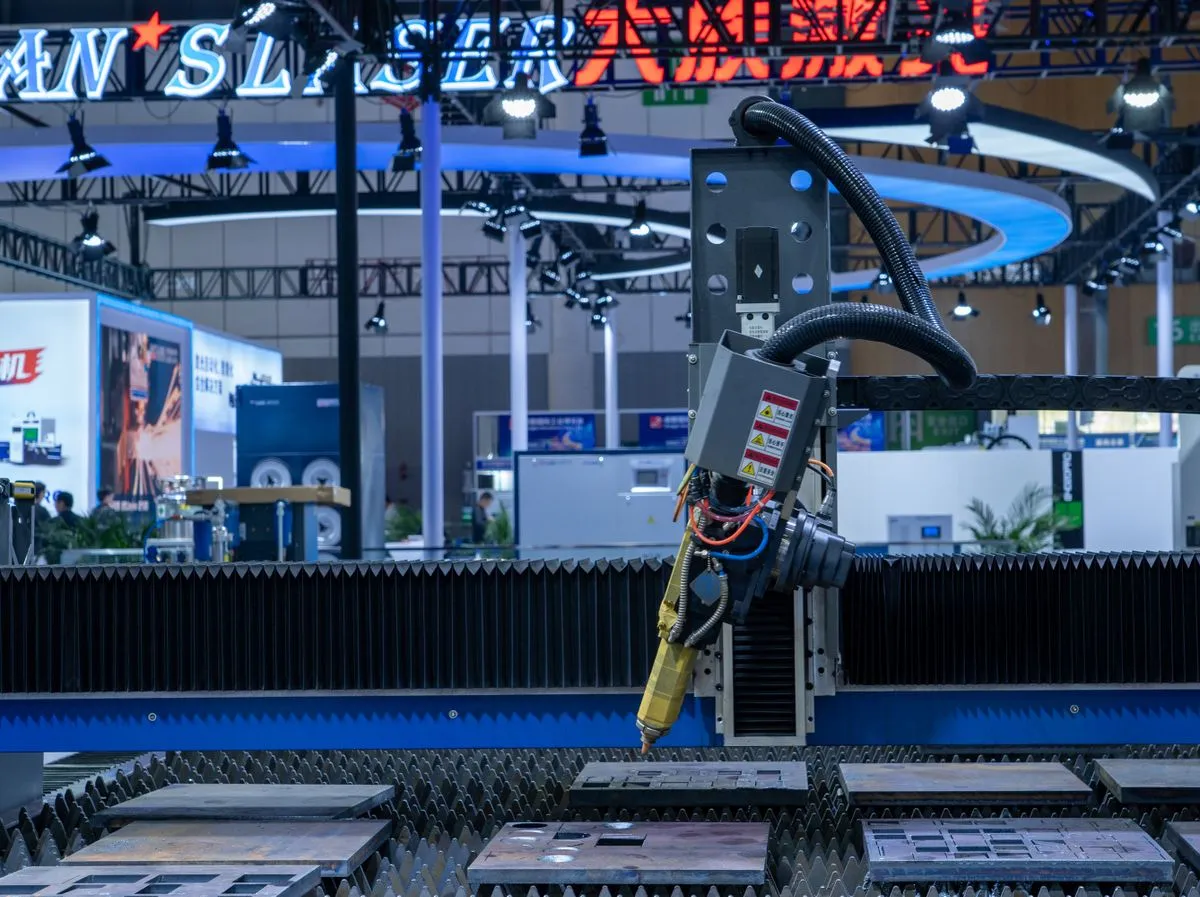
Where Conversions Go Wrong
Converting is not always a clean handover. A path that looks smooth on screen can arrive at the cutter with visible corners if the exporter flattens curves into short straight segments. Makers have reported exactly this, with an SVG that displays perfectly turning into a DXF full of straight edges. If a design relies on circles, scallops or smooth organic shapes, always open the converted file and zoom in before cutting anything expensive.
Text is the other classic trap. Any text sitting in a font needs converting to outlines before a DXF export, otherwise the receiving software has to guess at the font and may substitute something completely different. Converting text to outlines removes that risk and turns letters into the same plain geometry as everything else in the file.
Scale is worth a quick check too. Open the converted file, measure a known element, and confirm it still matches the original before you cut a full sheet.
How to Convert Between the Two
Inkscape is the most widely used free option for SVG to DXF conversion. It is open source and handles the conversion reasonably well, though results still depend on how the original paths were built. Adobe Illustrator can also export to DXF, provided text has been outlined first.
Going the other direction is simpler. You can convert DXF to SVG online for free with tools such as Convertio, which lets you share CAD drawings on the web as scalable vector graphics without installing any software. That is handy when a fabricator sends back a DXF and you want to inspect the shapes in a design app or load them into a home cutter.
There is a shortcut worth knowing if your original artwork lives in a PDF or a scan. QuietBookCut converts sewing and appliqué patterns straight into cut-ready SVG or DXF files for Cricut, Silhouette, ScanNCut, Sure Cuts A Lot and laser cutters, so you choose the output format at the start instead of exporting, converting and repairing afterwards. Its tracing and colour grouping mean the file arrives with pieces already organised, which saves a lot of manual work before the first cut.

A Simple Pre-Cut Checklist
- Confirm which formats your machine or software actually accepts before you start converting anything.
- Pick SVG when the workflow is desktop cutting, vinyl or HTV with multiple colours and layers.
- Pick DXF when the workflow is CAD-based, laser cutting or CNC and the design depends on detailed line work.
- Convert text to outlines before any DXF export.
- Open the converted file, zoom in on curves and check a known measurement.
- Run a small test cut in scrap material before committing a full sheet.
Turn your pattern into cut files
QuietBookCut traces every piece of a PDF or scan into SVG or DXF cut files, grouped by the colours written on the pattern.
Convert a pattern →Frequently asked questions
- Is SVG the same thing as a vector file?
- SVG is one type of vector file, not a synonym for every vector format. DXF, EPS and PDF can also hold vector data. What matters for cutting is whether the file contains clean paths rather than pixels. A PNG with an SVG extension will not cut correctly, no matter how the file is labelled or renamed.
- Can a vinyl cutter open a DXF file?
- Sometimes, depending on the software in front of the machine. SVG is the standard for Cricut and desktop cutting tools, so it is the safer choice for vinyl and heat transfer work. If you only have a DXF on hand, convert it to SVG first, then check the result before cutting your good vinyl.
- Do curves survive an SVG to DXF conversion?
- Not always. Curves can come through as a series of short straight segments, which shows up as faceted edges on circles and organic shapes. Open the converted file, zoom in on the tightest curve in the design, and compare it with the original before you send it to the cutter.
- Should I convert text to outlines before exporting a DXF?
- Yes. Any text sitting in a font should be converted to outlines before DXF export, because the receiving program may not have that font and may substitute a different shape. Outlining turns letters into plain geometry, so what you designed is what gets cut, right down to the last serif.
- Which format should I export for a laser cutter?
- DXF is the usual answer for CAD-based and industrial laser workflows, since those setups typically require it, and it suits detailed line work well. Desktop laser tools vary, so confirm the accepted import formats in your own software. Keep the original SVG as a master copy so you can re-export cleanly later.