Page designer guide
Make felt shapes with a few words, lay them out on your quiet book pages, see how the page will look, then download cut files for your machine. This guide walks through every button, one picture at a time.
The designer needs a free account — designing is free, you only pay to download. Get started free Log in
1. What the designer is
The designer is your felt-craft table on screen. You describe a shape, like "a red hooded cape", and it appears in your library, ready to cut. You drag shapes onto book pages and move them around until the page looks right.
When you're happy, you send the pages to download. That turns them into cut files (SVG) for your cutting machine.
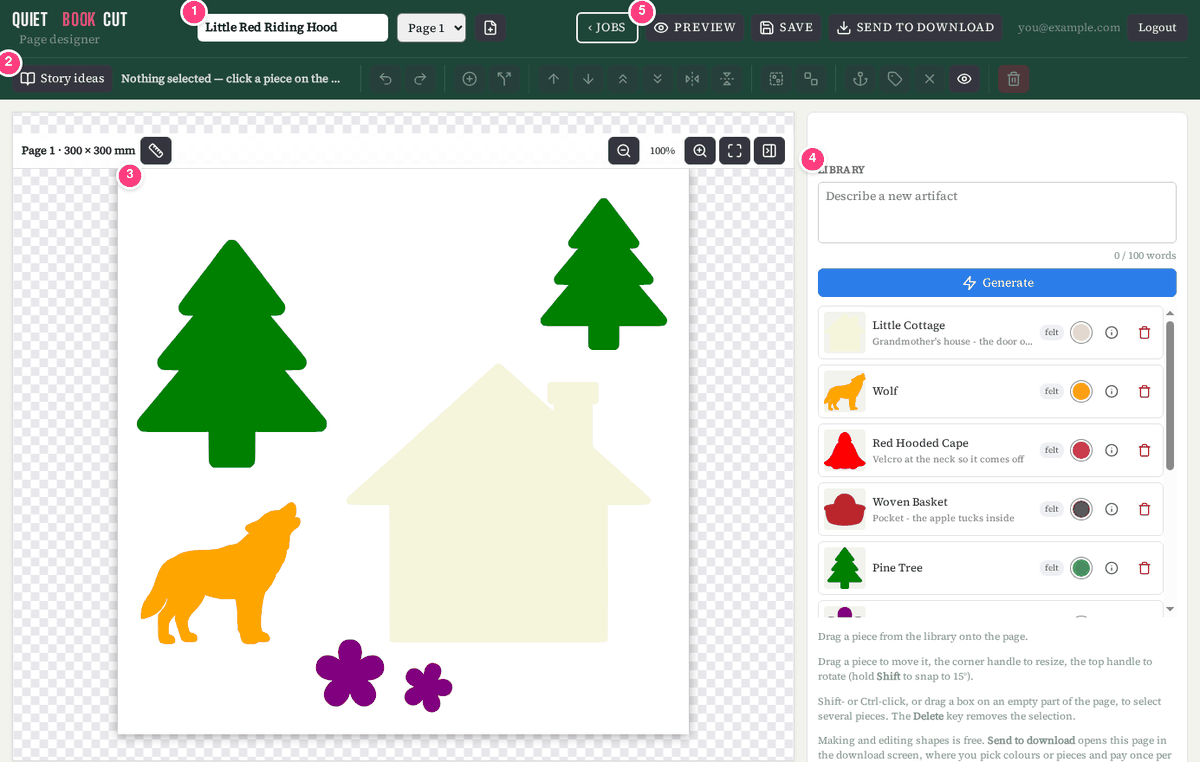
- 1Book bar — your book's name, which page you're on, and a button for a new page.
- 2Tool bar — story ideas, undo, AI edits, arranging, grouping, attachment points and delete.
- 3The page — your quiet book page at its real size. Shapes are shown in their colors.
- 4Library — describe new shapes here, and find every shape you've made.
- 5Preview, Save and Send to download — see the page in felt, save your book, and get your cut files.
Check the page size first. Pieces are cut at exactly the size they have on the page. If the designer page is bigger than your real book page, it's easy to size things up to fill it, and some pieces then come out too big. Make the page the size your element needs to fit, and the cut pieces will match.
2. Your designs (books and pages)
Each design is a book. A book has up to 10 pages. You'll find all your books on the Jobs page, under Your designs.

- New design starts a fresh, empty book.
- Edit opens a book in the designer, just as you left it.
- Delete removes the book and its pages. The shapes in your library stay.
The book bar

- 1Book name — click and type a name. Press Enter to keep it.
- 2Page picker — jump between the pages of this book.
- 3New page — adds the next page (Page 2, Page 3…). A book can hold 10 pages.
- –Delete page (the page icon with a minus, next to New page) — removes the page you're on, after asking. Its shapes stay in your library. Delete the last page and you get a fresh, empty Page 1.
- 4Save — keeps the name and makes sure everything has landed. Your book then waits for you in the Jobs list.
Page size
New pages are 300 × 300 mm. To change that, click the ruler button next to the page name, above the page.

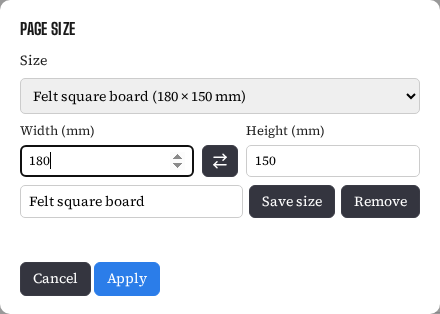
- Pick a size from the list: square, a 12 × 12 in or 12 × 24 in cutting mat, A4, A3 or US Letter.
- Or pick Custom size and type your own width and height in millimetres (50 to 1000 mm).
- Click the swap arrows to turn the page between portrait and landscape.
- To keep a size for next time, type a name for it and click Save size. It appears at the top of the list under Your sizes. Pick it and click Remove to take it off the list.
- Click Apply. The view then zooms to fit: the whole page is centred and made as big as your window allows, so you can see all of it at once. Zoom in again with the + button when you want to work on a detail; the fit page button brings the whole page back into view at any time.
3. Making shapes
Describe the shape you want in plain words. The designer draws it as a cuttable felt shape and puts it in your library.
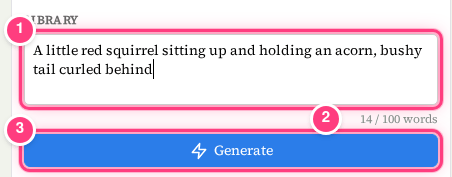
- 1Describe box — type what you'd like. The box grows as you write.
- 2Word counter — up to 100 words. Short and clear works best.
- 3Generate — makes the shape. Or press Ctrl+Enter (Cmd+Enter on a Mac).
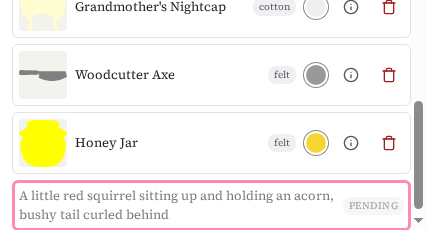
The new shape shows up at the end of your library with a pending label while it's being made. It usually takes under a minute. You can keep working while you wait.
Holes and windows
Want a peek-through window, eye holes or button holes? Say so: "a starfish with two round eye holes", "a house with a window". The designer cuts real openings into the shape (at least 3 mm across, so they can be cut from felt) — even small lacing holes along a shoe. Put buttons, a picture or see-through mesh behind them. Without the words hole, window or opening, drawn details like eyes stay part of the solid shape.
Basic shapes (free, no AI)
For plain pieces — a sand strip, a sky, a sun, a heart — open Basic shape under the describe box, pick rectangle, rounded rectangle, circle, oval, triangle, heart, star or cloud, type the width and height in mm and click Add. It's ready at once, at exactly that size.
Letters and numbers (free, no AI)
For a name page or a counting page, type the word in the row under the basic shapes — letters A–Z, numbers 0–9, & and – — pick a font (rounded, playful, bold, chunky, bubbly or clean; all chunky enough to cut), set the letter height in mm and click Add letters. Each character becomes its own chunky, rounded felt shape (the holes in A, B, O and 8 are cut out), all at the same height so they line up, and the whole word is placed on the page as a row. Move or recolor each letter like any other piece.
Story ideas
Not sure what to make? Click Story ideas at the left of the tool bar. Pick a fairy tale or fable, or write your own story, and get a list of shape ideas for it.
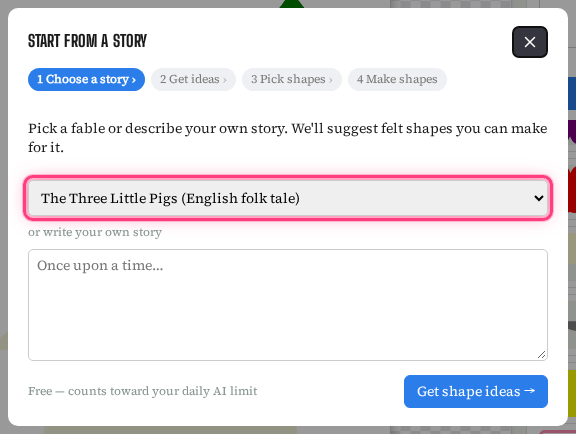
- Choose a fable from the list, or write your own story in the box. Click Next.
- Wait a moment while ideas are thought up.
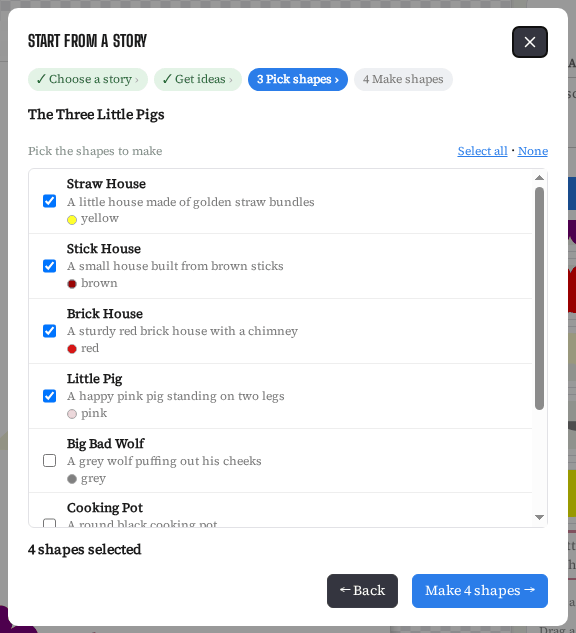
- Tick the shapes you'd like. Select all and None help with long lists.
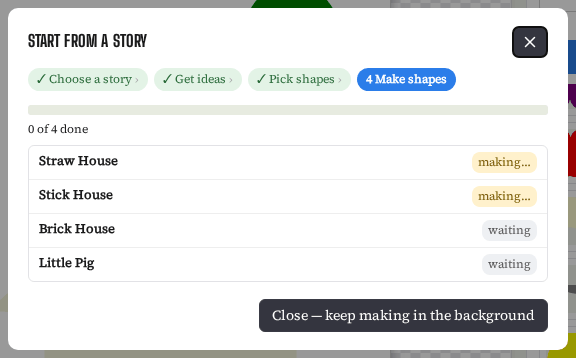
- Click Make … shapes. Each one is made and dropped into your library.
4. Your library
Every shape you make lives in your library, on the right. Library shapes can be used in any book, on any page, as often as you like.
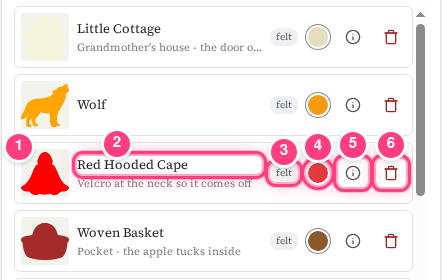
- 1Picture — grab here and drag the shape onto the page.
- 2Name — click the name to rename it. Press Enter to keep, Esc to cancel.
- 3Material — felt, cotton, ribbon, velcro and so on.
- 4Color dot — click to choose the shape's color.
- 5Details (i) — set the material and a short note on what the piece does.
- 6Bin — deletes the shape from your library. It also comes off every page it's placed on, so you'll be asked first.
Choosing a color
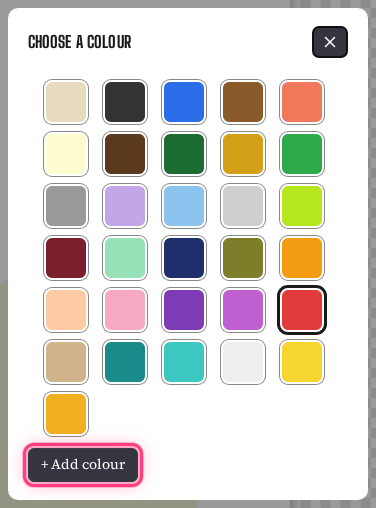
- Click the color dot on a library card.
- Click a color square. The shape changes color in the library and everywhere it's placed.
- Need a color that's not there? Click + Add color.
Material and description
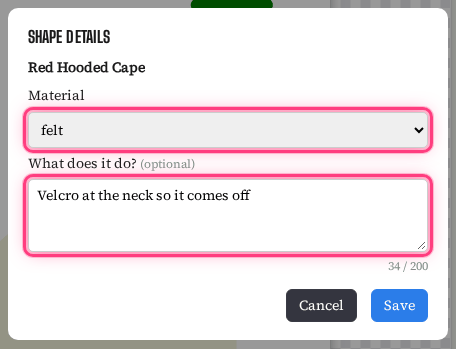
Click the (i) button to open Shape details. Pick the material and, if you like, write a short note on what the piece does, up to 200 letters. For example: "Velcro at the neck so it comes off" or "rope attached to the keys used to unlock the door". Notes show under the shape's name and on the page preview, so you remember how the page works.
Renaming

Click a shape's name and type. Names show in your download, so clear names help later.
↑ Back to top5. Placing and arranging
Put a shape on the page
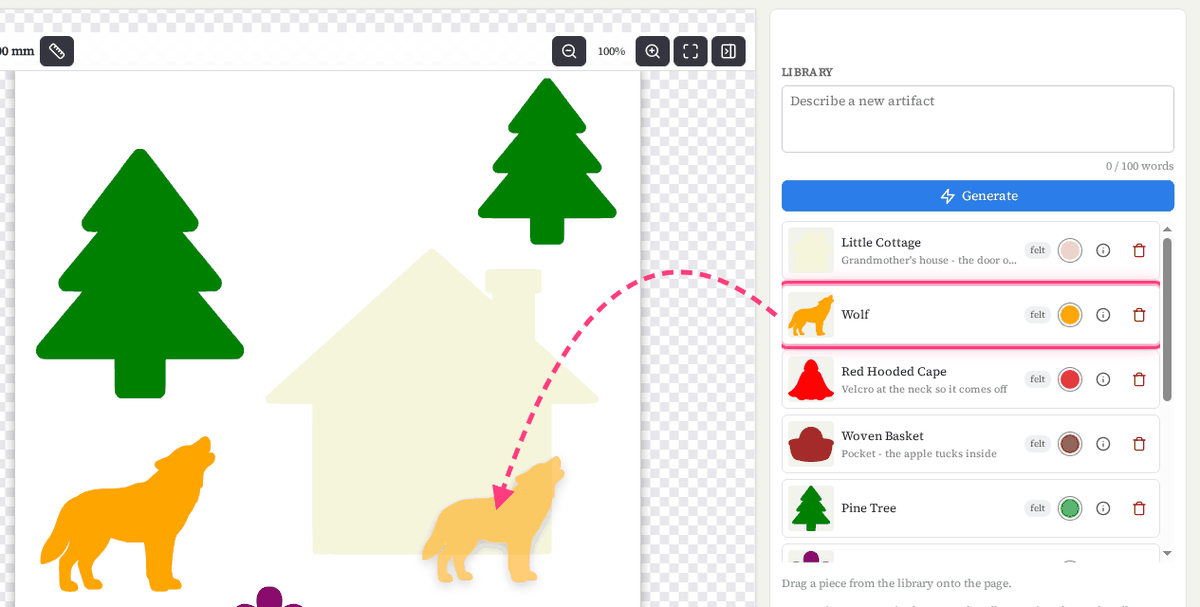
While you drag, the shape is shown at its true size on the page, so you can see how big it will be before you let go. Drop the same shape as many times as you like.
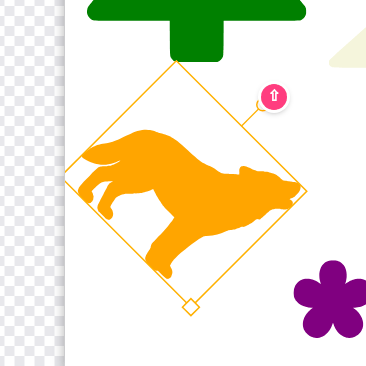
Move, resize and rotate
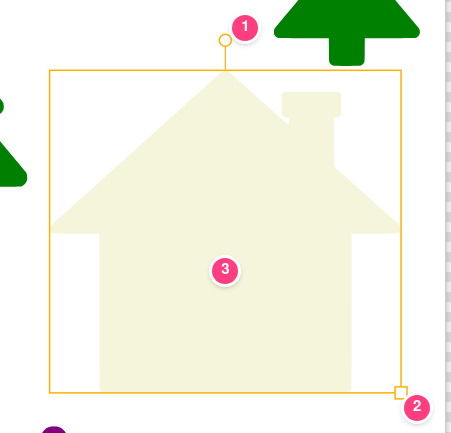
- 1Top round handle — drag to rotate. Hold Shift to snap to neat 15° steps.
- 2Corner square handle — drag to make it bigger or smaller.
- 3The shape itself — drag to move it.

Select several shapes
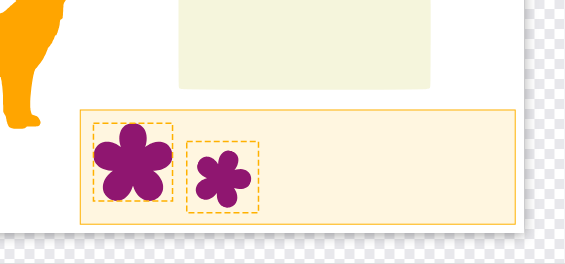
- Hold Shift or Ctrl and click shapes to add them to the selection.
- Or press on an empty part of the page and drag a box around them.
The tool bar

- 1Undo / Redo — take back the last moves. See below.
- 2Add a feature / Break into parts — AI edits, see section 6.
- 3Bring forward, Send backward, Bring to front, Send to back — which shape sits on top when they overlap.
- 4Mirror (left–right, H) and Flip (upside down, V).
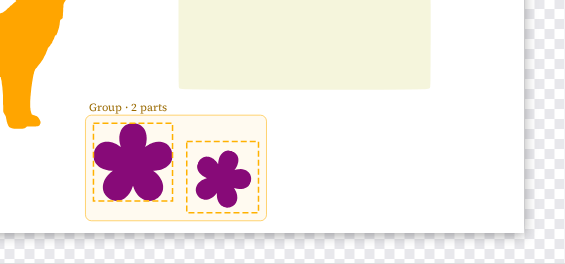
- 5Group / Ungroup — glue selected shapes together so they move as one, or let them go again.
- 6Attachment points — see section 7.
- 7Delete — removes the selected shapes from the page (or press Delete). They stay in your library.
Mirror and flip
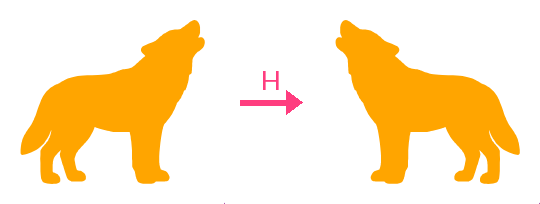
Mirror is handy for pairs: two birds facing each other, left and right shoes. Select a shape (or several) and press H to mirror left–right, or V to flip upside down. A mirrored shape is cut mirrored, exactly as you see it.
Undo and redo
Moved something by mistake? Press Ctrl+Z to undo. Redo with Ctrl+Shift+Z or Ctrl+Y (use Cmd on a Mac). Undo remembers your last 5 steps, and only covers placing: moving, resizing, rotating, mirroring and arranging. It doesn't bring back deleted shapes or undo color changes.
Zoom and the side panel
- 1Page size — see section 2.
- 2Zoom out
- 3Zoom in — you can also hold Ctrl and scroll the mouse wheel over the page.
- 4Fit — shows the whole page again.
- 5Hide panel — slides the library away so the page gets more room. While it's hidden, a « Library tab sits on the right edge of the window: click it to slide the panel back.
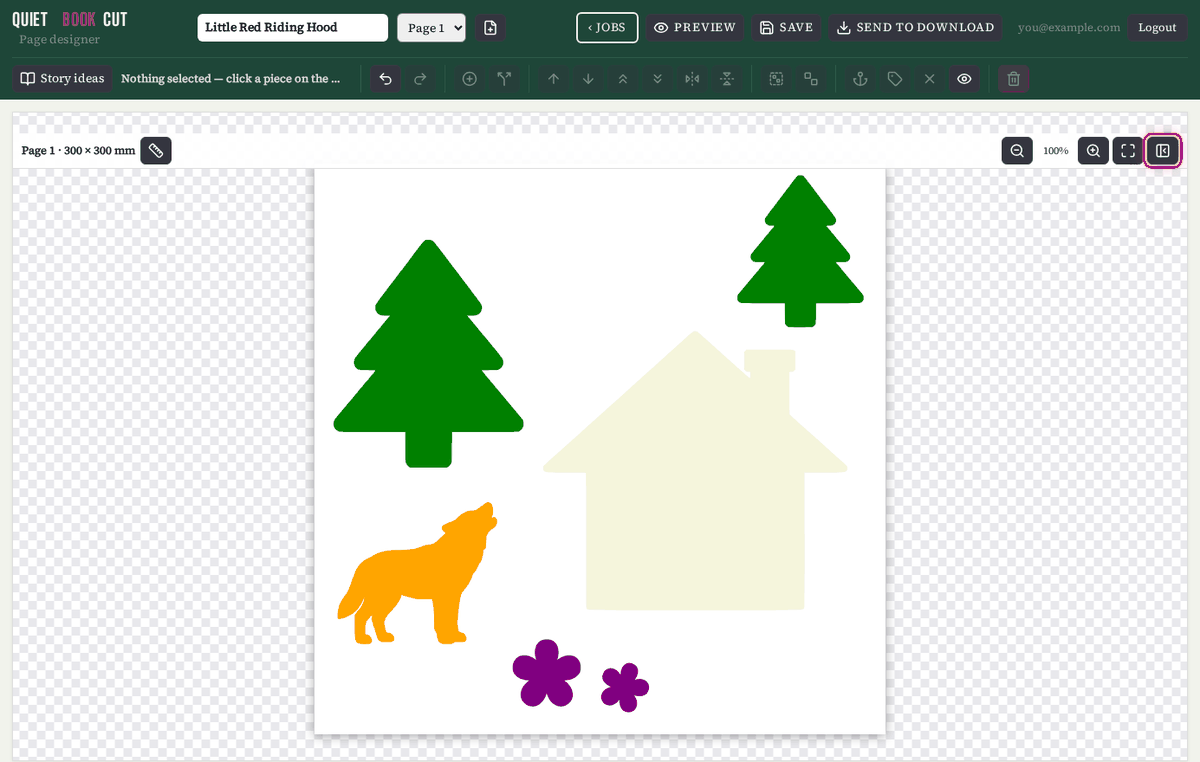
6. AI edits: add a feature, break into parts
Select a shape on the page first. Then use the two AI buttons in the tool bar.

- 1Add a feature — type what to add, for example "a bow tie" or "a scarf". A new version of the shape appears in your library. The original stays as it was.
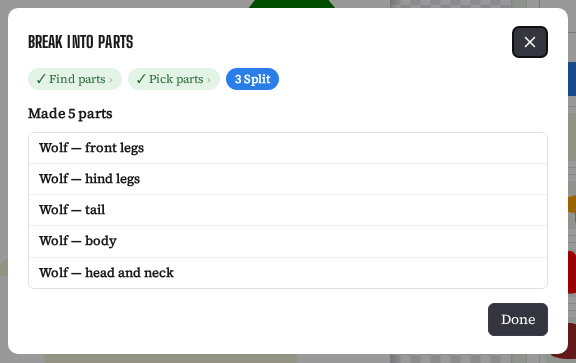
- 2Break into parts — cut one shape into separate pieces, each in its own color. Great for appliqué: a wolf with a different-colored head, body, legs and tail.
Change with AI: googly eyes, zips, buttons…
The sparkle button next to Break into parts lets you tell the AI what to add to the selected shape, in your own words — for example "add googly eyes and a zipper mouth".
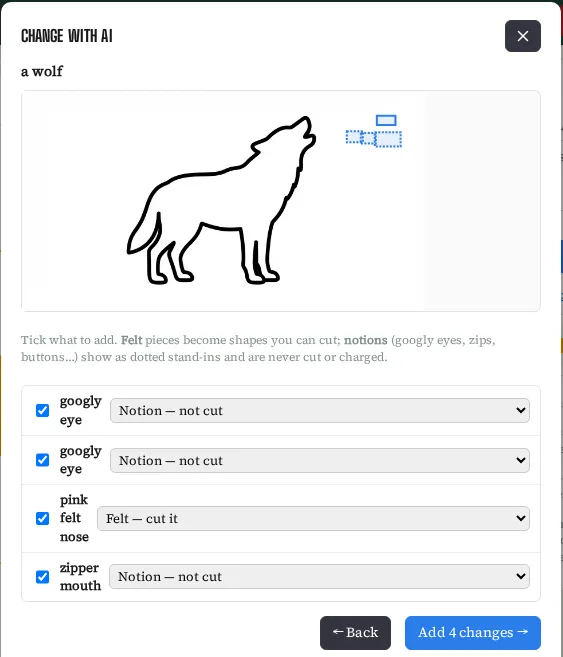
- 1Select the shape, click the sparkle button and type what should change. Click Suggest changes.
- 2The AI lists what it would add and shows where. Untick anything you don't want.
- 3For each one choose Felt — cut it (it becomes a real shape you can cut), Notion — not cut (googly eyes, zips, buttons, bells…) or Filling — inside (stuffing, crinkle film, a cardboard stiffener…).
- 4Click Add. Notions appear straight away as dotted stand-ins; felt pieces appear on the shape when they're ready. Everything is grouped with the shape.
Break into parts, step by step
- Select the shape on the page and click Break into parts.
- Find parts: the designer looks at your shape and suggests parts.
- Pick parts: each suggested part has a blue box on the picture. Untick any you don't want cut apart.
- Click Split into … parts and wait a few seconds.
- Click Done. Your shape on the page is swapped for its parts, put together just like before.
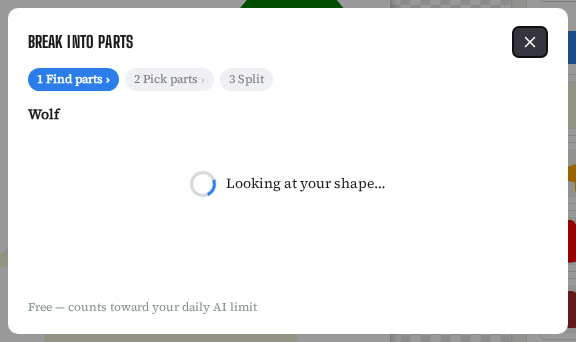
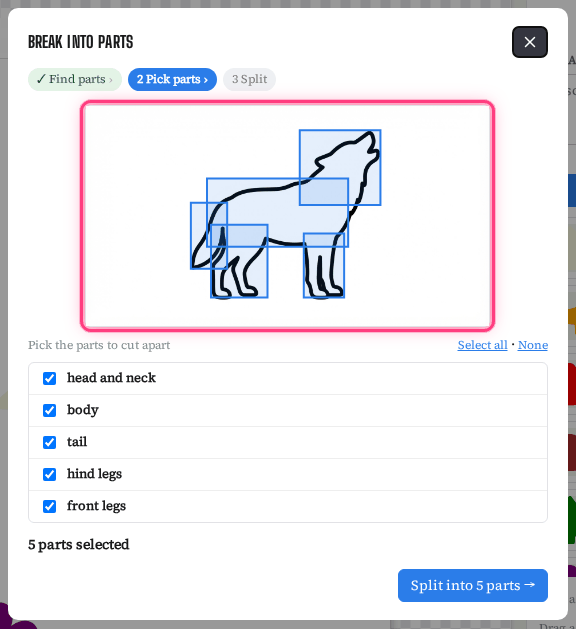
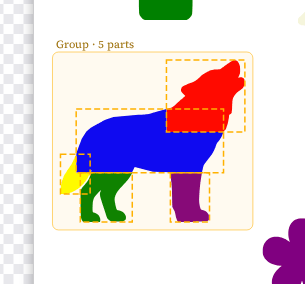
The parts arrive grouped, so the wolf still moves as one. To move a part on its own, select the group and click Ungroup. Each part also lands in your library, so you can change its color there.
- A shape has to be at least 30 mm on its longest side to be broken into parts. Smaller shapes have the button greyed out.
- Any part narrower than 8 mm is joined onto its neighbour instead of being cut on its own. The wizard tells you which parts were merged.
7. Attachment points
Quiet books are full of things that attach: a key on a rope, a cape with a velcro tab, an apple tied to a basket with ribbon. An attachment point is a little pin that marks where something joins, with a short label so you remember what goes there.
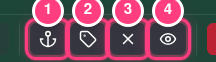
- 1Attach mode — select a shape, click this, then click the spot on the shape.
- 2Label point — give it a short label (up to 40 letters), like "ribbon to the apple".
- 3Clear point — removes the point from the selected shape.
- 4Show / hide points — hide them while you arrange, show them again later.
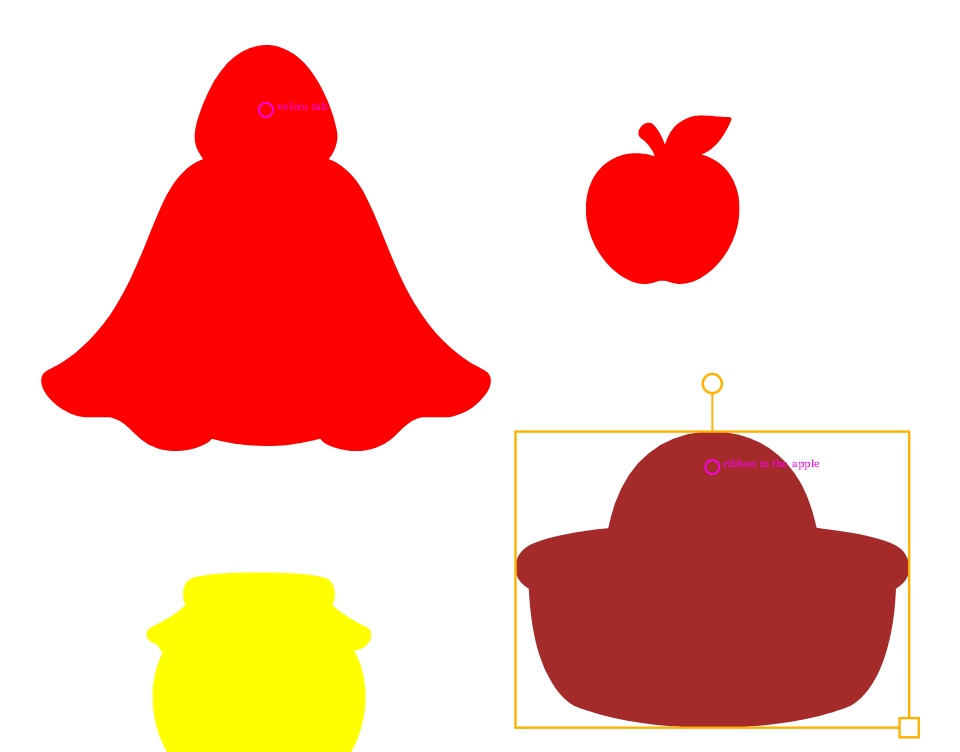
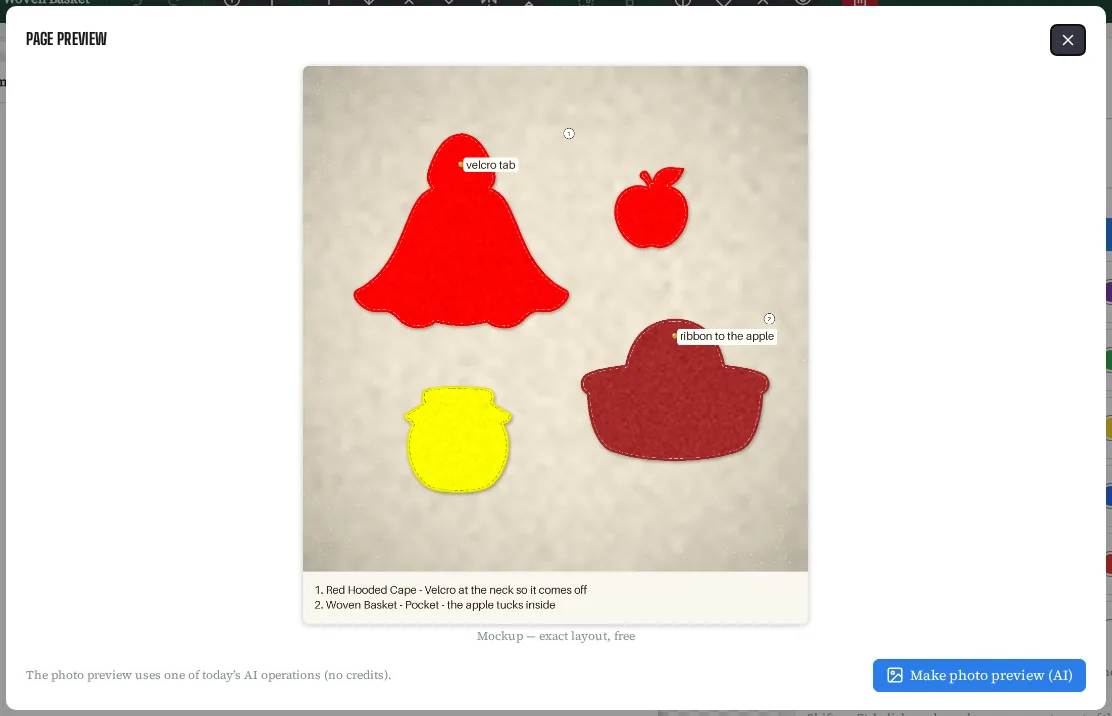
Each shape on the page can have one point. In the preview they show as little brass pins with their labels (see the next section).
↑ Back to top8. Preview your page
Click Preview in the top bar to see the page as a finished felt page.
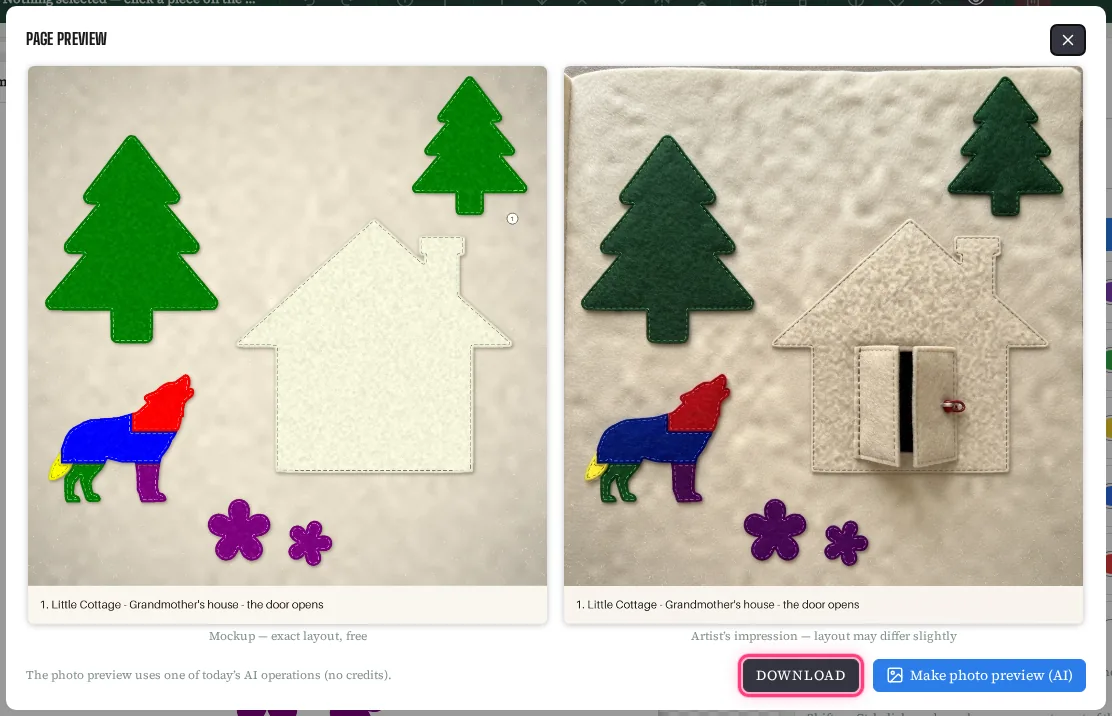
- The mockup appears straight away and is always free. It's the exact layout: felt texture, stitch lines, your colors, attachment pins and a numbered list of your shape notes.
- Want to imagine the finished page? Click Make photo preview (AI). It takes about a minute and draws a photo-style picture of the page.
- Click Download to keep the photo. We also keep the last photo of each page: open the preview again and it's there straight away. While the page hasn't changed, the button stays greyed out (the photo is already made); change the page and you can make a new one.
9. Send to download and paying

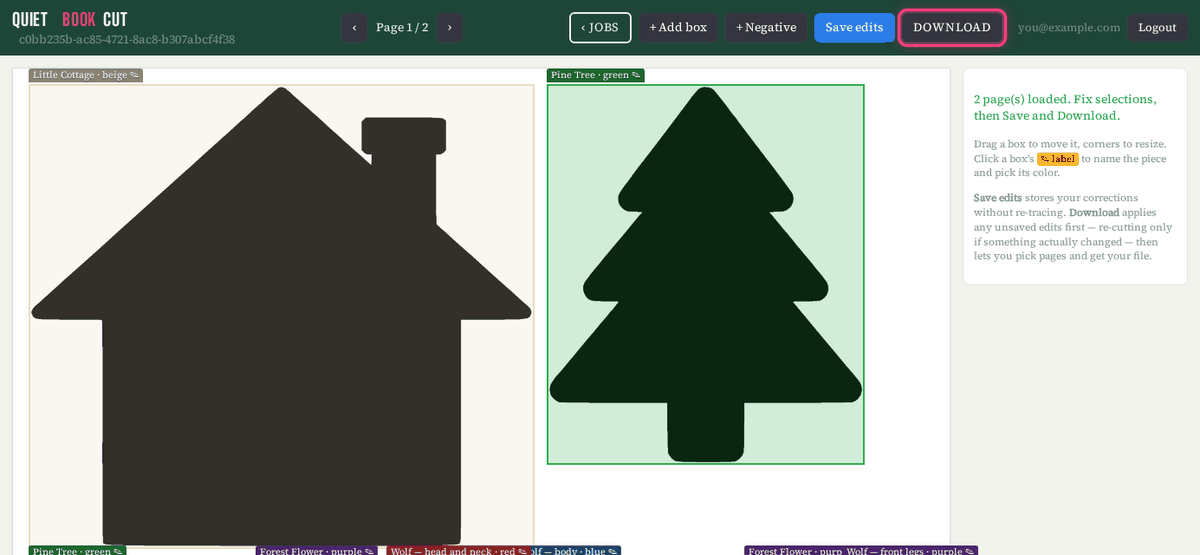
- Click Send to download. Every page of the book that has shapes on it is sent.
- Wait a few seconds while the cut files are prepared. You're then taken to the download screen.
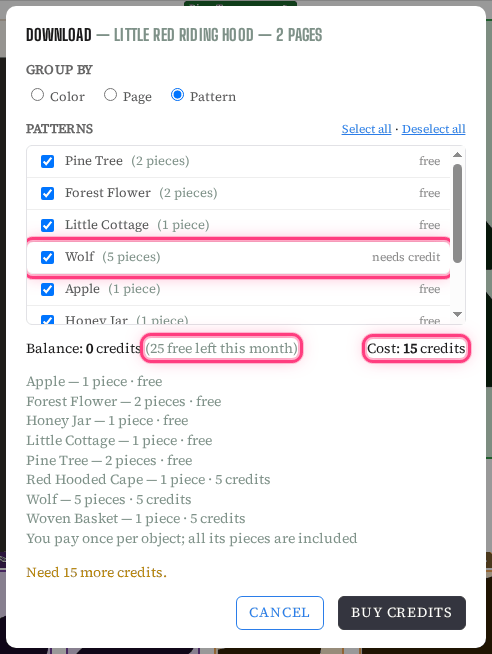
- Click Download, choose how to group your files (by color, by page or by pattern piece), and tick what you want.
- Click Download again. If you need more credits, the button says Buy credits instead.
How paying works
- Pay once per main shape: 5 credits. A wolf broken into 10 parts is still one shape, so it's 5 credits. Added features and parts belong to the shape they came from. The same shape placed twice counts once. An average 30-shape book is about 150 credits — one $5 pack.
- Free credits every month. Your account gets 25 free credits each month (shared with PDF pattern downloads) — enough for 5 shapes. The download window shows how many are left. Unused ones don't carry over.
- Paid once, free forever. Once you've paid for a shape, you can download it again for free: in another book, another color, another size, even after breaking it into more parts.
- Nothing to pay for practice. Making, editing, splitting, previewing and sending to download are all free. You only pay when you actually download.
10. Quick reference and FAQ
Keyboard shortcuts
| Keys | What it does |
|---|---|
| Ctrl+Enter / Cmd+Enter | Generate the shape you've described |
| Ctrl+A | Select every shape on the page |
| Delete | Remove the selected shapes from the page |
| Ctrl+A, then Delete | Clear the whole page (your library keeps the shapes) |
| H | Mirror the selection left–right |
| V | Flip the selection upside down |
| Ctrl+Z | Undo the last move (up to 5 steps) |
| Ctrl+Shift+Z or Ctrl+Y | Redo |
| Shift-click or Ctrl-click | Add a shape to the selection |
| Drag on an empty spot | Draw a box to select several shapes |
| Shift while rotating | Snap to 15° steps |
| Ctrl + mouse wheel | Zoom in and out on the page |
| Enter / Esc while renaming | Keep / cancel the new name |
On a Mac, use Cmd wherever it says Ctrl.
Questions
Why is Generate greyed out?
Your description is over 100 words. Trim it down and the button wakes up again. It's also briefly greyed while another AI job you started is getting going.
Why can't I break this shape into parts?
First select the shape on the page. If the button is still greyed, the shape is smaller than 30 mm on its longest side, or it's still being made. Make it bigger, or wait until it's ready.
Why did some of my parts merge together?
Parts narrower than 8 mm are too fiddly to cut and sew, so they're joined to the part next to them. Choose fewer, bigger parts if you want them separate.
Where did my design go?
Go to the Jobs page and look under Your designs. Click Edit to open it. Opening the designer on its own takes you to the book you edited most recently.
Do I lose my work if I log out?
No. Everything saves as you go, straight away. Log back in and pick it up from Your designs.
I hit the daily limit. Now what?
You can still arrange, recolor, preview the mockup and download. New AI jobs (making shapes, story ideas, splitting, photo previews) open up again tomorrow.
If I delete a shape from the page, is it gone?
No, it's still in your library. Only the bin button on the library card deletes the shape itself.