Print Then Cut in Cricut Design Space
- Download the PNG sheet with the Cricut Print Then Cut sheet chosen.
- In Design Space, choose Upload and pick the PNG.
- Choose Flat Graphic, not “Apply a style” or “Multiple Layers”: those need Cricut Access.
- Click Upload: the sheet lands on the canvas as a Print Then Cut image.
- Check the size: the stickers should measure what this page says once uploaded. Design Space crops an upload to its content and may not read the PNG's size; if they don't, select the image, keep the lock on and set W to that width.
- Click Make, print the sheet on your home printer, then put it on the mat: the machine cuts round each sticker.
Silhouette: use the PNG to print and the cut-line SVG (Designer Edition) or trace the PNG's outer edge.
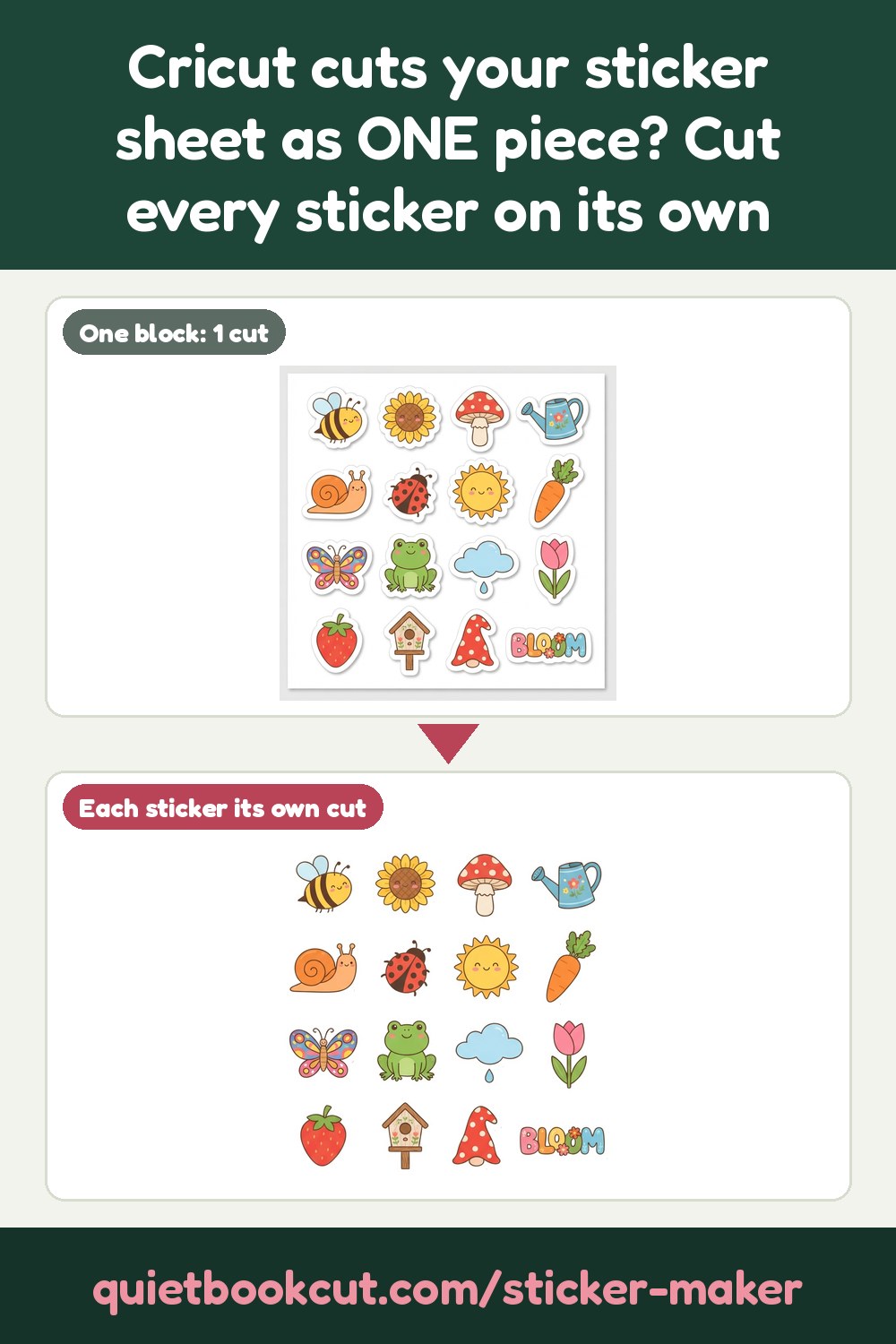
Frequently asked
- What pictures work best?
- Cartoons, logos, clip art and drawings. A PNG with a transparent background gives the cleanest cut: the sticker follows the picture's own edge. A JPEG, WebP or PDF (only its first page is used) works too: a plain background around the picture is taken away.
- How do I print and cut the sheet with my Cricut?
- In Cricut Design Space, choose Upload, pick the PNG sheet and choose Flat Graphic (not "Apply a style" or "Multiple Layers": those need Cricut Access). Upload it: it lands on the canvas as a Print Then Cut image. Click Make, print the sheet on your home printer, then put it on the mat and let the machine cut round each sticker.
- Why are my stickers the wrong size in Design Space?
- Design Space crops an upload to its content and may not read the size saved in the PNG. Once you upload, this page tells you what the stickers should measure. If they don't, select the image, keep the lock on and set W to that width.
- Which sheet size should I choose?
- For Cricut, choose Cricut Print Then Cut (6.75 x 9.25 in): that is the area Design Space prints and cuts. US Letter and A4 are for other cutters and for cutting by hand. One sticker makes a sheet exactly one sticker big.
- Can I use it with a Silhouette or a laser?
- Yes. Use the PNG to print and the cut-line SVG to cut (Silhouette Studio Designer Edition opens SVG files), or trace the PNG's outer edge in Silhouette Studio. The SVG holds every sticker's outline, in the same place as on the PNG.
- How much does it cost?
- Uploading and previewing are free. Downloading costs 5 credits per picture, taken from your free monthly credits first (a free account gets 25 credits every month). After that, every size, border, sheet and number of copies of the same picture is free.
- Can I use any picture I find online?
- No. Only upload pictures you own or have permission to use: your own drawings and logos, or artwork whose licence lets you print and sell or give it away as stickers. QuietBookCut is a tool for making your own projects, not for copying someone else's work.